Seven steps
Setting it up
Caret works the moment it is installed — none of this is required. But ten minutes here makes it fit the way you actually write.
Everything below is saved in your browser on this computer. Nothing syncs, and nothing is sent anywhere.
Step 1 · Open the settings
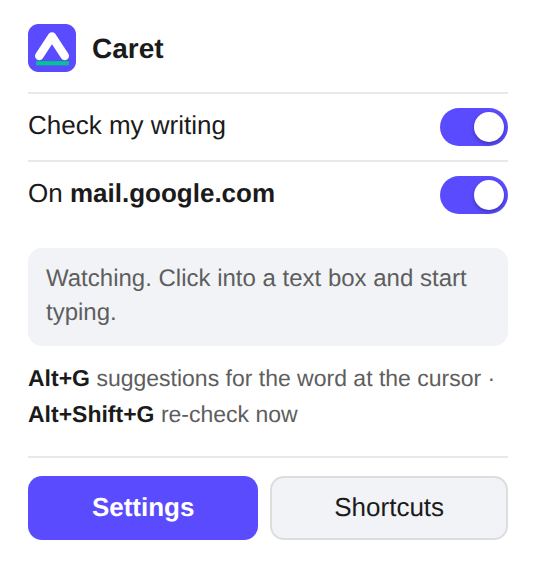
Click the Caret button in the toolbar — the blue ^ — and choose Settings. If it is not there, click the puzzle-piece icon and pin Caret first.
The same panel is where you switch Caret off everywhere, or just on the site you are looking at.
Step 2 · Decide what gets underlined
Five switches, top to bottom. The first four are on to begin with; the fifth is deliberately off.
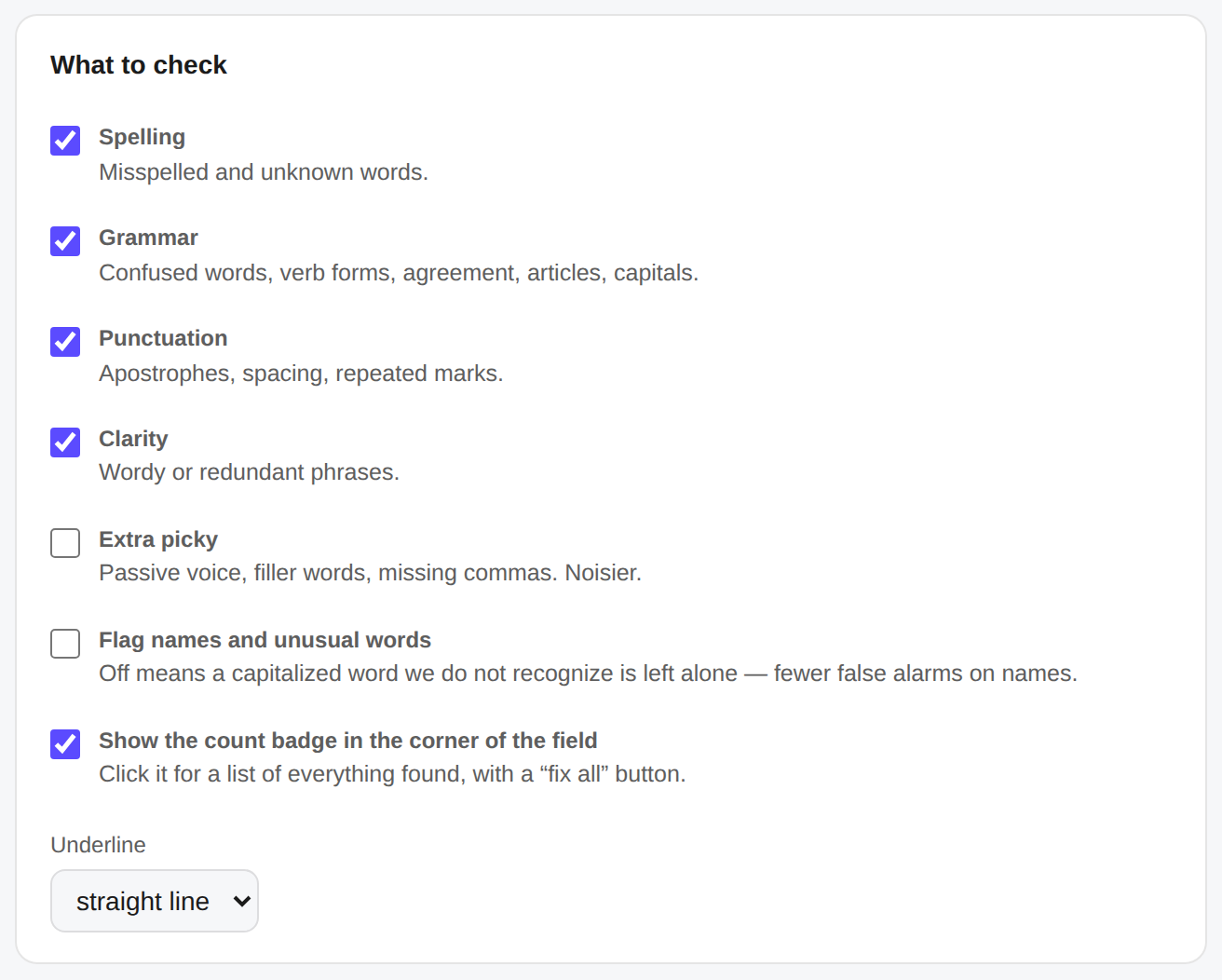
| Spelling | Misspelled and unknown words. Leave this on. |
| Grammar | Confused words, verb forms, agreement, a/an, and capitals. |
| Punctuation | Apostrophes, spacing, repeated marks. |
| Clarity | Wordy stock phrases. Turn it off if you find it preachy. |
| Extra picky | Passive voice, filler words, missing commas. Genuinely noisy — try it for a day and see. |
Underneath are three more:
- Flag names and unusual words. Off by default, which means a capitalized word Caret does not recognize is left alone. Turn it on if you would rather see every surname questioned than miss a typo in one.
- Show the count badge. The little number in the corner of the box. Click it for the whole list and a Fix all button.
- Underline. A straight line, or the classic wavy squiggle.
Step 3 · Teach it your words
Surnames, your school or company, jargon, that one client with the odd spelling. Two ways in:
- As you write. Hover the red underline and click Add to dictionary. It never asks again, anywhere.
- In bulk. Settings → My dictionary → type a word → Add. The list underneath shows everything you have taught it; the × removes one.
Step 4 · Switch it off where it does not belong
Some boxes are not prose — a code editor, a search bar you live in, an internal tool. Right-click the page and choose Turn checking on or off for this site. Do it again to turn it back on.
Settings → Turned off on lists every site you have silenced, with an × to undo it.
Caret already stays out of password fields, credit-card and one-time-code boxes, and any field a site has marked as off-limits to grammar checkers. You do not have to do anything for those.
Step 5 · Silence one suggestion without silencing the rest
If Caret keeps flagging something you write on purpose, click Ignore on the card. That exact complaint about that exact word stops appearing — everywhere, for good.
Changed your mind? Settings → Ignored suggestions → Clear the ignore list brings them all back.
Step 6 · Learn the two shortcuts
- Alt+G — open the card for the word the cursor is sitting in. No mouse needed.
- Alt+Shift+G — re-check this box right now, including the Claude pass if you have set one up.
Both can be changed at edge://extensions/shortcuts, or from
the Shortcuts button in the toolbar panel. Every fix you click is a
normal edit, so Ctrl+Z undoes it like anything else
you typed.
Step 7 · Optional — add Claude
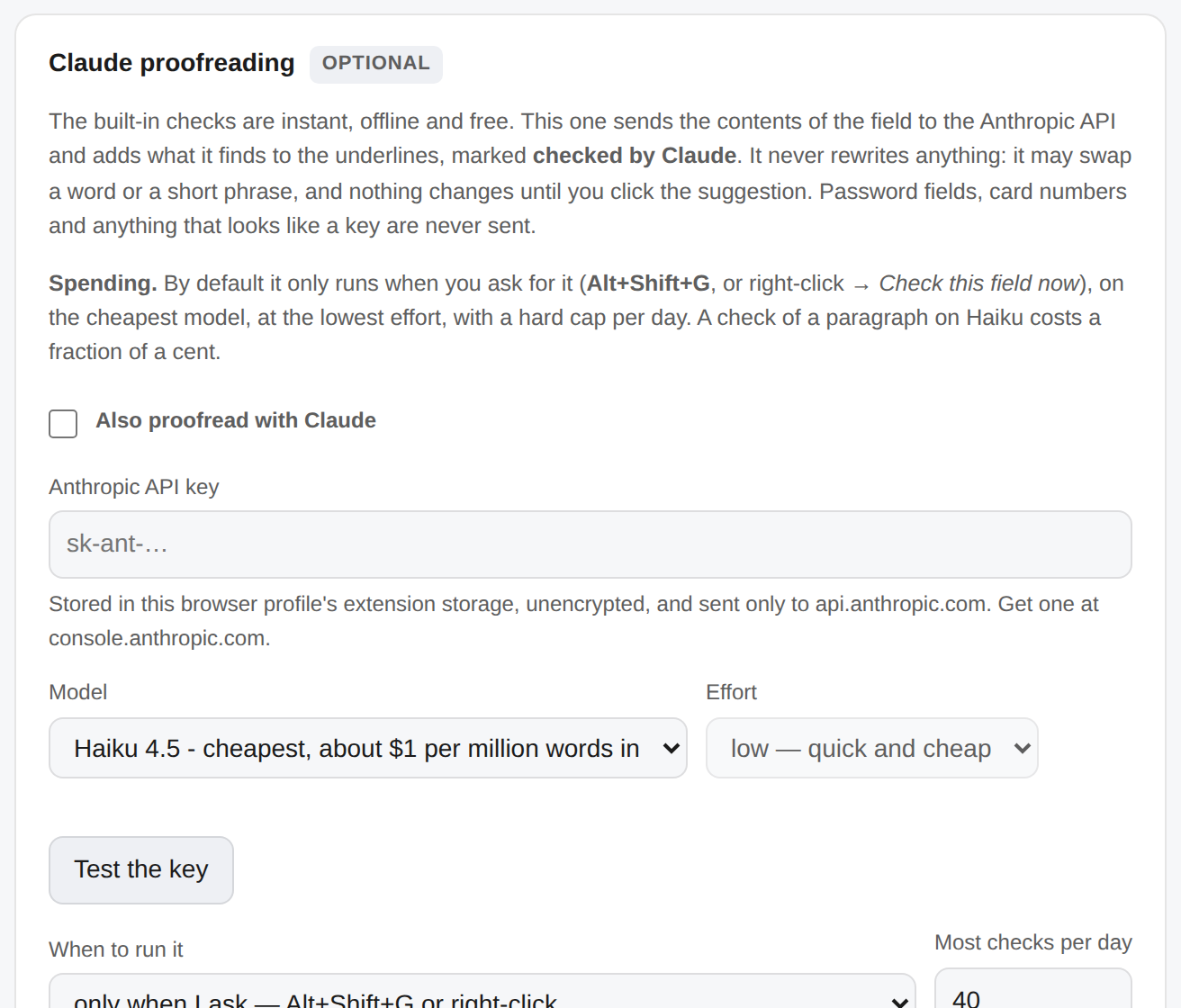
Everything above is free and runs on your computer. This step is the one exception: it sends the box you are writing in to Anthropic's API and costs a fraction of a cent per check. Skip it happily — the offline checks do the everyday work.
-
Get a key. Sign in at console.anthropic.com,
add a little credit, and create an API key. It starts with
sk-ant-. - Paste it in and tick Also proofread with Claude. Press Test the key — you should see it report a couple of mistakes found in a test sentence. Any error shown there is the API's own words.
- Choose when it runs. Only when I ask (the default) means it costs nothing until you press Alt+Shift+G or right-click → Check this field now. Automatically runs it a second after you stop typing, which is comfortable and spends more.
- Set a daily limit. 40 checks by default. When it runs out, Caret stops asking until tomorrow. The page shows how many are left.
- Pick a model. Haiku is the cheapest and is the default; Sonnet and Opus read more carefully and cost more. Effort is only offered on the models that accept it.
Two things worth knowing. A subscription to Claude or ChatGPT does not cover API use — it is billed separately, per request — so the only real ceiling is the one you set: the daily limit here, plus a spend limit on the key itself in the Anthropic console under Billing → Limits.
And Claude never rewrites you. It may swap a word or a short phrase; anything longer is thrown away before it reaches the screen, and nothing changes until you click it.
Using it day to day
- Hover an underline to see what is wrong and click the fix.
- Click an underline to pin the card open; Esc closes it.
- Click the count in the corner for the full list, and Fix all for the unambiguous ones. Claude's suggestions are left out of that on purpose — they each want their own look.
- Nothing changes on its own. Every correction is a click you made.
Keeping it up to date
Installed from the store, Caret updates itself in the background. There is nothing to do.
If you installed it from a folder instead, replace that folder with the
current one and press the ⟳ reload button on the Caret card at
edge://extensions. Moving to the store version later keeps
your settings and your dictionary — they live in the browser, not in the
folder.